
Edit Subscription Products
Sip Subscriptions gives you powerful tools to manage active subscriptions, including making changes to products, frequency and discounts — all from your App admin. Whether you're updating subscriptions based on customer requests or making adjustments for special promotions, it’s easy to keep things flexible.
This guide covers how to manage and edit products within an active subscription using the Sip admin.
1. Editing an Existing Subscription.
You can update the quantity, price, or discount for any product that's already part of an active subscription.
To edit a product:
- Go to the Sip Subscriptions app in your Shopify admin
- Click on the Subscriptions tab
- Select the subscription you’d like to edit
- In the Frequencies dialog, you can click on edit:

In the Frequencies dialog, you’ll be able to update:
- Frequency Name: Update the internal name used for the delivery plan
- Delivery Frequency: Set how often the product is shipped
- Billing Frequency (for Prepaid Subscriptions): Define how often the customer is charged
- Minimum & Maximum Billing Cycles: Set limits on how long a subscription should run
- Inventory Policy: Choose whether inventory is tracked for this plan
- Quantity: Adjust how many units are delivered per cycle
- Base Price: Update the original price of the product (this change applies only within the subscription and does not affect the product price in Shopify)
- Discount: Modify or apply subscription-specific discounts
- Final Subscription Price: Directly set the total price for the product within the subscription
- Delivery Policy (optional): Configure any custom rules related to delivery timing
Once you’ve made your changes, click Confirm to apply the updates to the subscription.

2. Replacing a Product
Need to swap one product for another in an active subscription? You can replace it in just a few clicks.
To replace a product:
- Click the Change Selection button in the Products section.

- In the Product popup, deslect the product you would like to remove and select the new product you'd like to substitute

- Click Add — the new product will now appear in the subscription

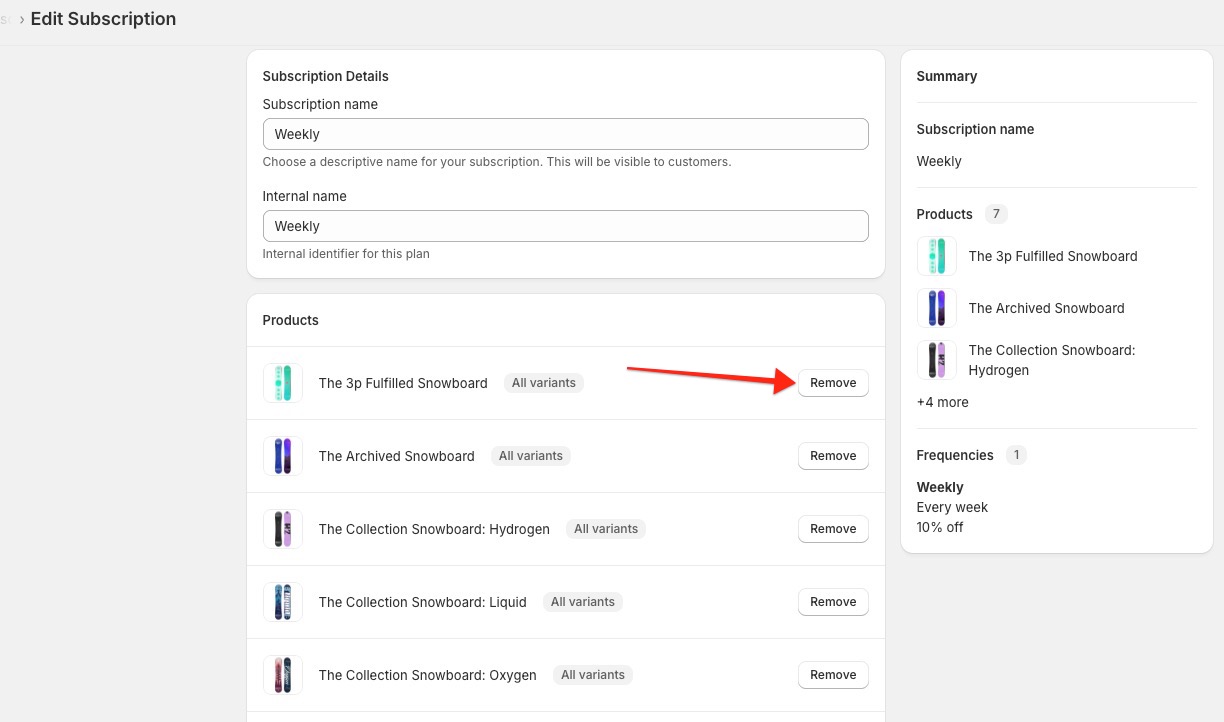
3. Deleting a Product
You can remove a product from a subscription if it's no longer needed.
To delete a product:
-
Click the Remove button next to the product you wish to remove
4. Adding a New Product
Need to add additional products to an existing subscription? You can add these in just a few clicks.
To add a new product:
- Click the Change Selection button in the Products section.
- In the Product popup, select the new product you'd like to add

- Click Add — the new product will now appear in the subscription
Need Help?
Editing subscriptions is a great way to offer flexibility and keep your customers happy. If you’re unsure about making changes or want a second look, feel free to reach out — we’re here to help!